Workers & Pages
Managing deployments, viewing logs, and configuring your Workers
Overview
The Workers & Pages section is your primary interface for managing deployed Next.js applications. This is where you'll view logs, check deployment status, configure environment variables, and manage custom domains.
Each environment you've configured (production, staging) appears as a separate Worker in this dashboard. Understanding how to navigate and use these features will make troubleshooting and monitoring significantly easier.
Accessing your Workers
From the Cloudflare dashboard, navigate to Workers & Pages in the left sidebar.
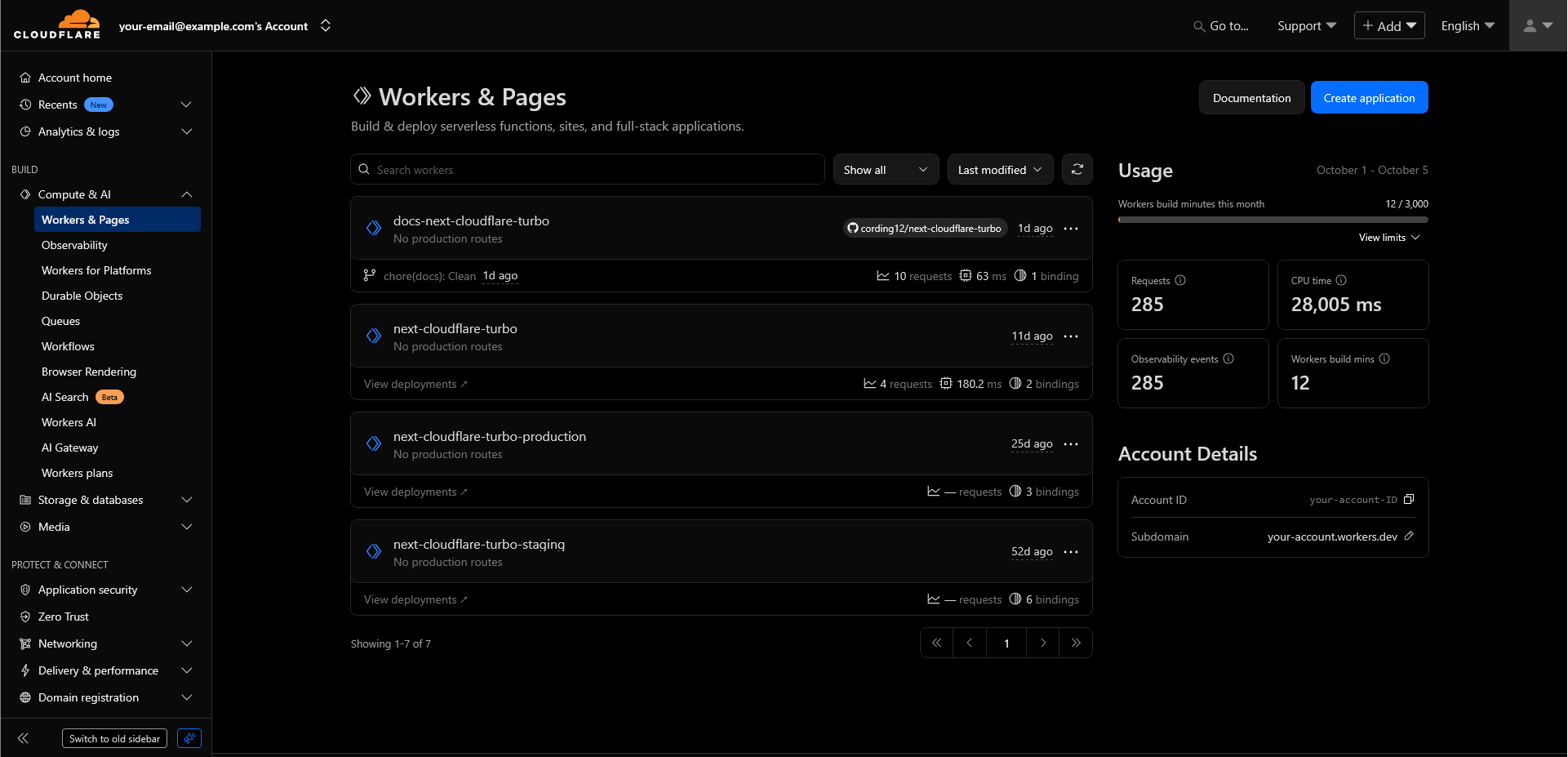
You'll see a list of all your Workers and Pages projects. For Next-Cloudflare-Turbo, you should see entries for:
next-cloudflare-turbo(production if other environments not configured)next-cloudflare-turbo-staging(if configured)next-cloudflare-turbo-production(if configured)docs-next-cloudflare-turbo(documentation site)
Click on any Worker to view its details and access management features.
Worker overview page
Once you've selected a Worker, you'll see the main overview page with several tabs:
Deployments
The default view shows your deployment history and current status. It shows your currently active deployment as well as deployment history.
Rolling back is instantaneous - click the three dots next to any previous deployment and select "Rollback to this deployment". This is useful for quickly reverting problematic changes.
Metrics
View performance data and request statistics:
- Request - Total requests over time (hourly, daily, weekly views)
- Subrequest - Requests made by a Worker to either Internet resources (
fetch()) or to other Cloudflare services like D1, KV, and R2 - Errors - Failed requests (4xx, 5xx status codes, exceeding CPU time)
- CPU time - CPU time per execution, i.e. time that the CPU spent actively executing. This specifically does not include time when the CPU is waiting for something to happen (like waiting for a
fetch()) - Wall time - Time as measured by a clock; includes time spent waiting (like waiting for a
fetch()) - Request duration - Time taken to respond to requests, including code execution and time spent waiting on I/O. The request duration chart is currently only available when your Worker has Smart Placement enabled.
For a detailed breakdown of all metrics, see Metrics and analytics
Logs
The Logs tab provides logs of requests hitting your Worker.
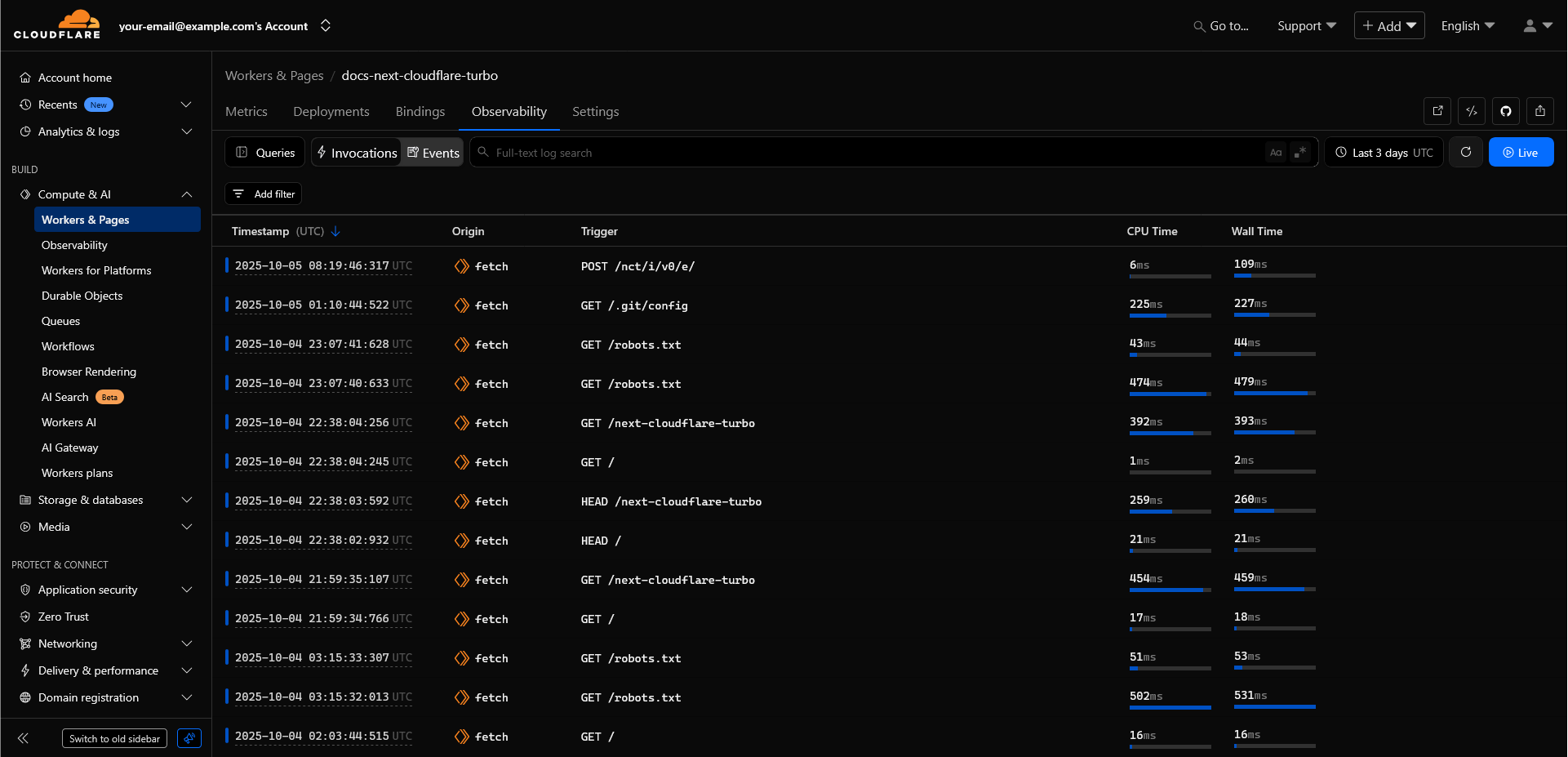
Features:
- Live request streaming as they happen
- Filter by status code (200, 404, 500, etc.)
- Filter by time range
- Search by request path or method
- View request/response headers and body
Logs are retained for 7 days on the free tier. If you need longer retention, consider upgrading to a paid plan or implementing your own logging solution. For more details, see Workers Logs - Limits
Settings
The Settings tab contains configuration options for your Worker.
Domains and Routes
Configure custom domains and routing rules for your Worker.
- Custom Domains - Assign a custom domain to your Worker
- Routes - Define URL patterns that trigger your Worker
If you use Cloudflare for your domains, all the heavy lifting is done for you. If you have your own domain provider, see Add a Custom Domain for more detail.
Variables and Secrets
- Environment Variables - Plain text configuration values accessible via
process.env - Secrets - Encrypted values that cannot be read back after creation (for API keys, tokens, etc.)
It is strongly recommended to only manage Secrets and Variables via the Worker's wrangler.jsonc (variables), or via the Wrangler CLI (Secrets). See Environment Variables for more information.
Build
Configure automatic builds by connecting your Worker to a Git repository. See Automatic Deployments for more information.
Bindings
View the resources bound to your Worker. A more advanced Worker will have multiple bindings:
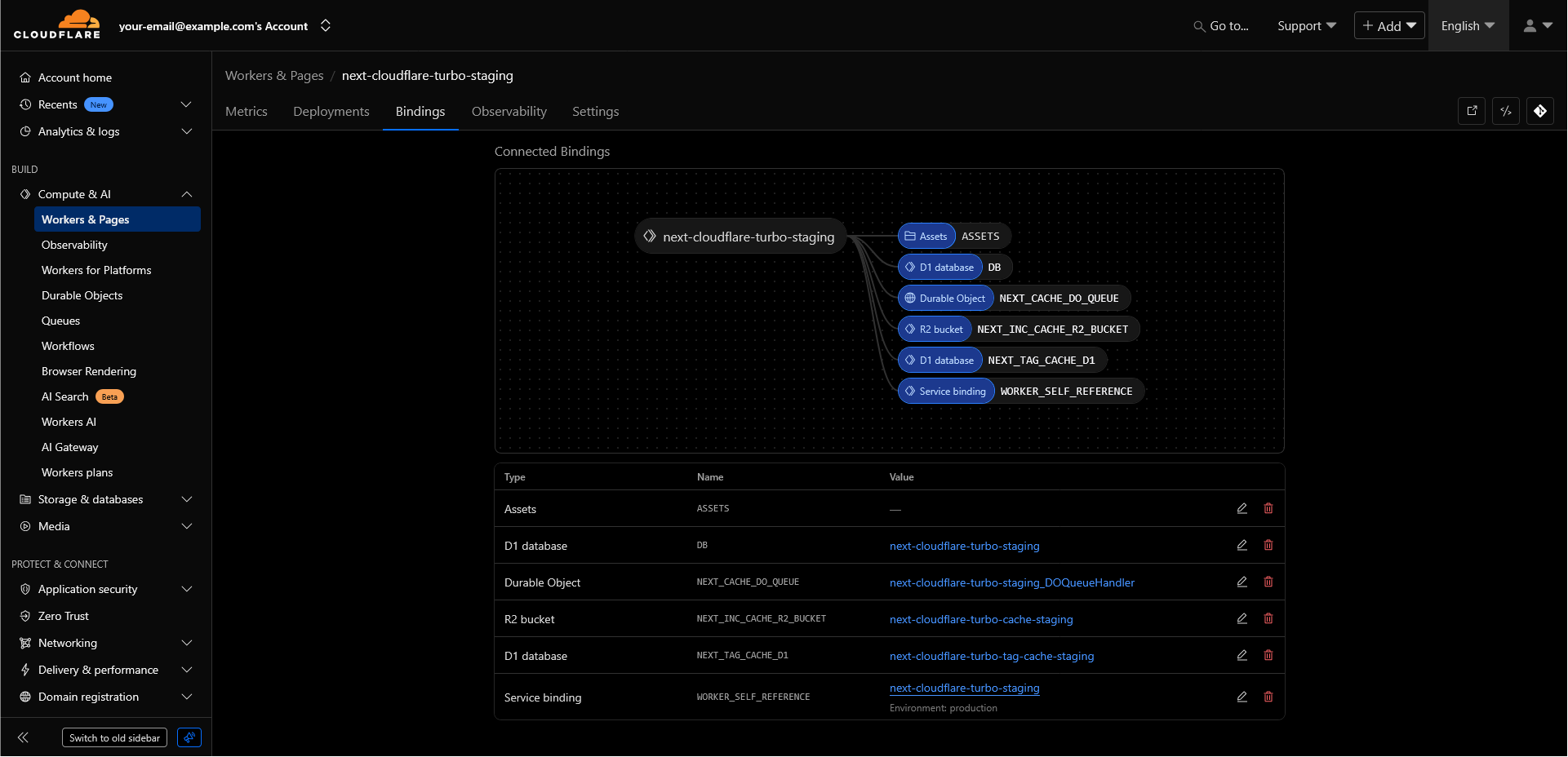
These bindings are defined in your wrangler.jsonc file and are read-only in the dashboard. To modify bindings, update your configuration file and redeploy.
Troubleshooting
Worker not responding
- Check deployment status - Ensure the Worker is active and not failed
- Verify routes - Confirm routes are configured correctly in Settings → Domains & Routes
- Check logs - Look for errors in the Logs tab that might indicate why requests are failing
High error rates
- Filter logs by 5xx errors - Identify the source of server errors
- Check resource bindings - Ensure D1, R2, and other bindings are correctly configured
- Review recent deployments - Consider rolling back if errors started after a deployment
Slow response times
- Check CPU time metrics - Identify if requests are taking too long to execute
- Review database queries - Use D1 console to check for slow queries
- Check cache hit rates - Low cache hits might indicate performance issues
FAQ
Next steps
How is this guide?
Last updated on