Dashboard overview
Navigating the Cloudflare dashboard and understanding its structure
Dashboard structure
The Cloudflare dashboard is organised into several main sections, accessible from the left sidebar. For managing your Next-Cloudflare-Turbo applications, you'll primarily work within three areas:
- Workers & Pages - Managing your deployed Next.js applications
- D1 - Database operations and queries
- Analytics & Logs - Performance monitoring and debugging
Main navigation
When you first log into dash.cloudflare.com, you'll see the main dashboard with your account overview.
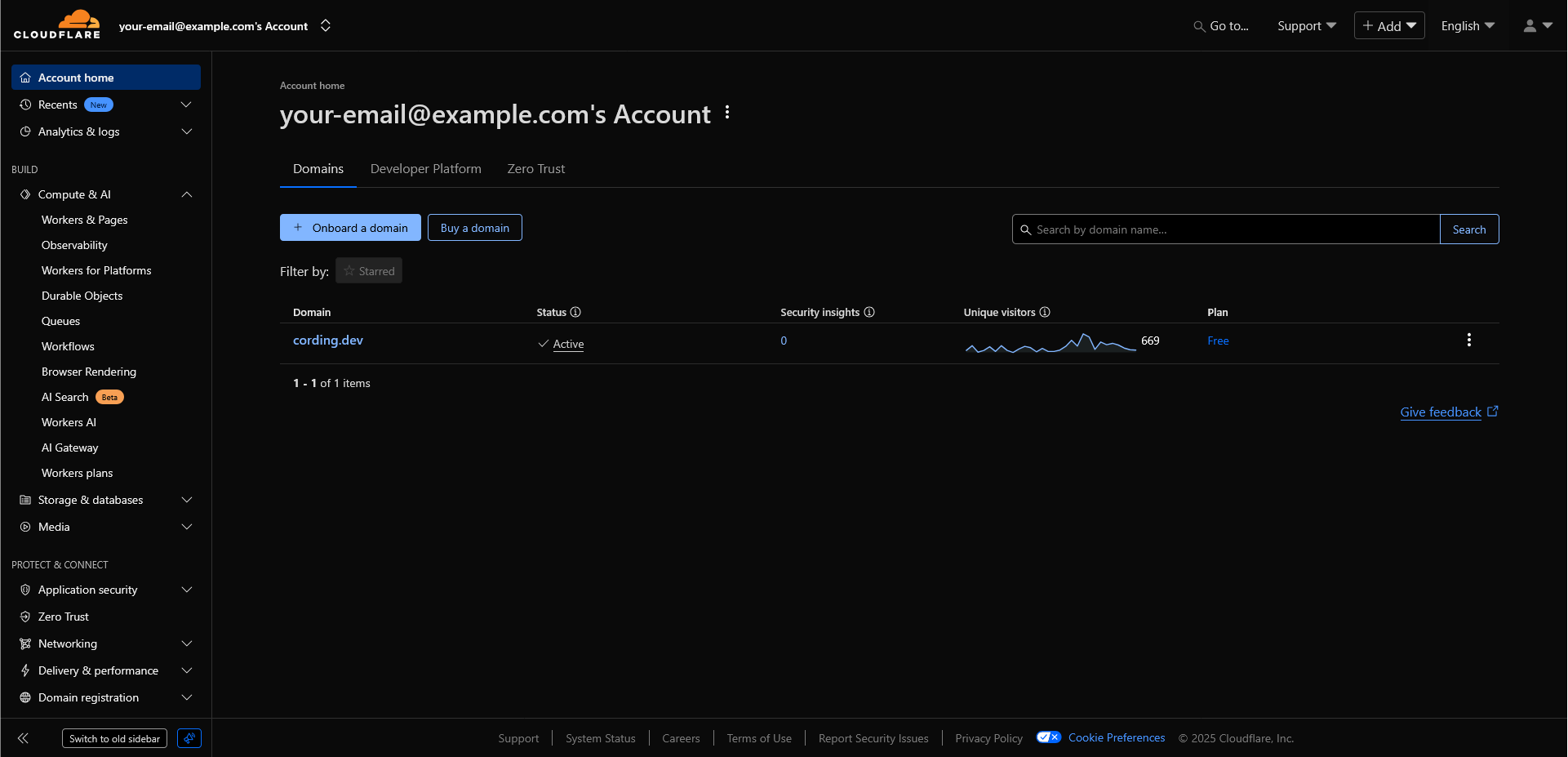
cording.dev. Your account home will look different.Left sidebar
The left sidebar contains the primary navigation. Key sections for this project include:
Workers & Pages - Access your deployed applications, view logs, manage domains, and configure settings for your Next.js deployments.
R2 - Manage your R2 buckets used for caching and file storage. View usage statistics and configure bucket settings.
D1 - Access the D1 database console, run queries, view table structures, and manage migrations.
Analytics & Logs - View real-time logs, performance metrics, and usage data across all your Cloudflare services.
Account Home - Overview of your account activity, recent deployments, and quick access to common tasks.
Top navigation
The top bar provides account-level controls:
Account selector - Switch between multiple Cloudflare accounts if you manage more than one.
Search - Quickly find Workers, Pages projects, or dashboard features.
Notifications - View system notifications, deployment status, and important alerts.
Profile - Access account settings, API tokens, and billing information.
Workers & Pages section
This is where you'll spend most of your time managing deployed applications.
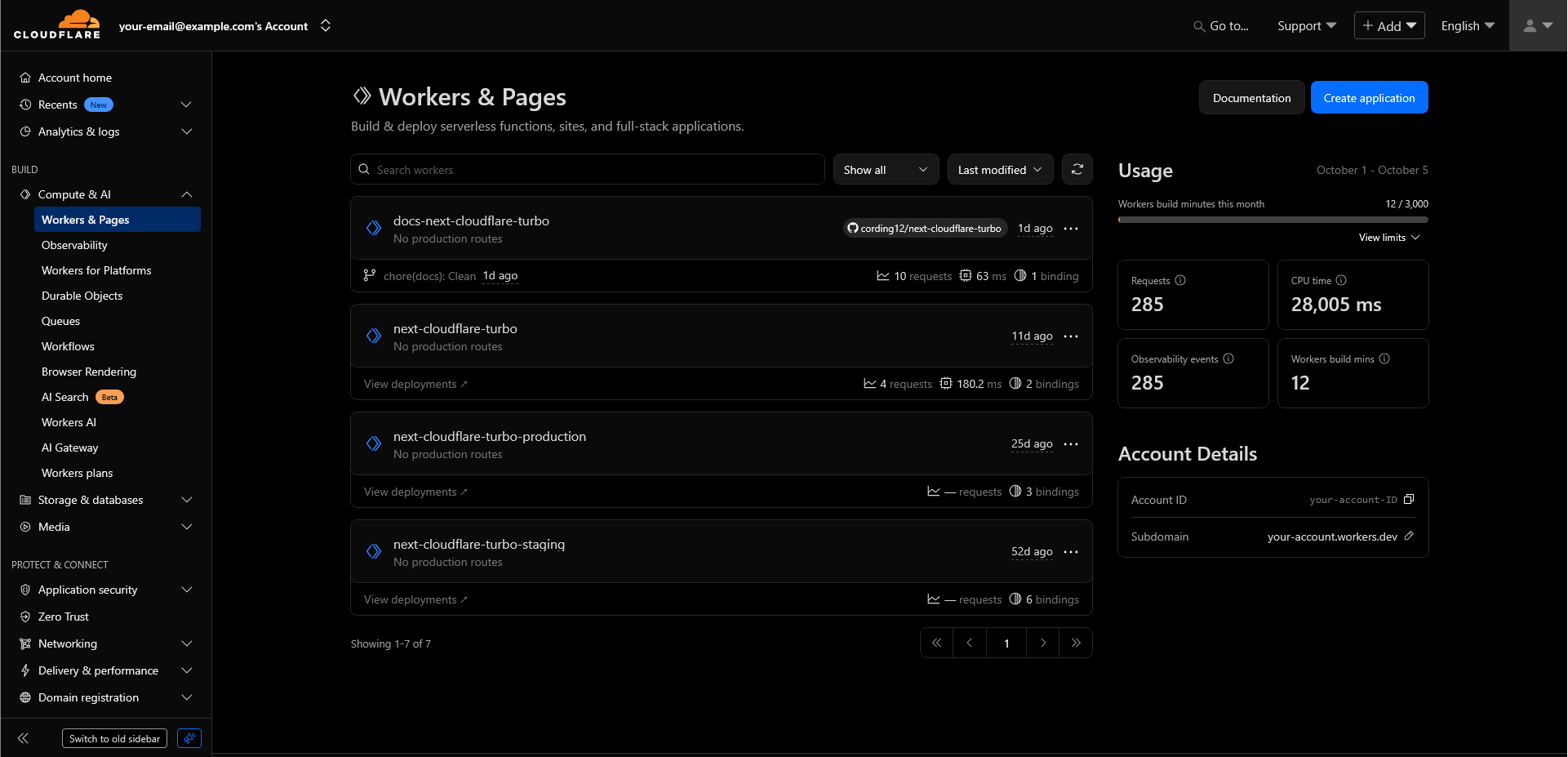
Click on any Worker or Pages project to access:
- Deployments - View deployment history and rollback if needed
- Settings - Configure environment variables, custom domains, and build settings
- Logs - Real-time request logs and error traces
- Metrics - Request rates, error rates, and performance data
D1 databases section
The D1 section provides a console for database operations.
Access it by clicking D1 in the left sidebar, then selecting your database from the list.
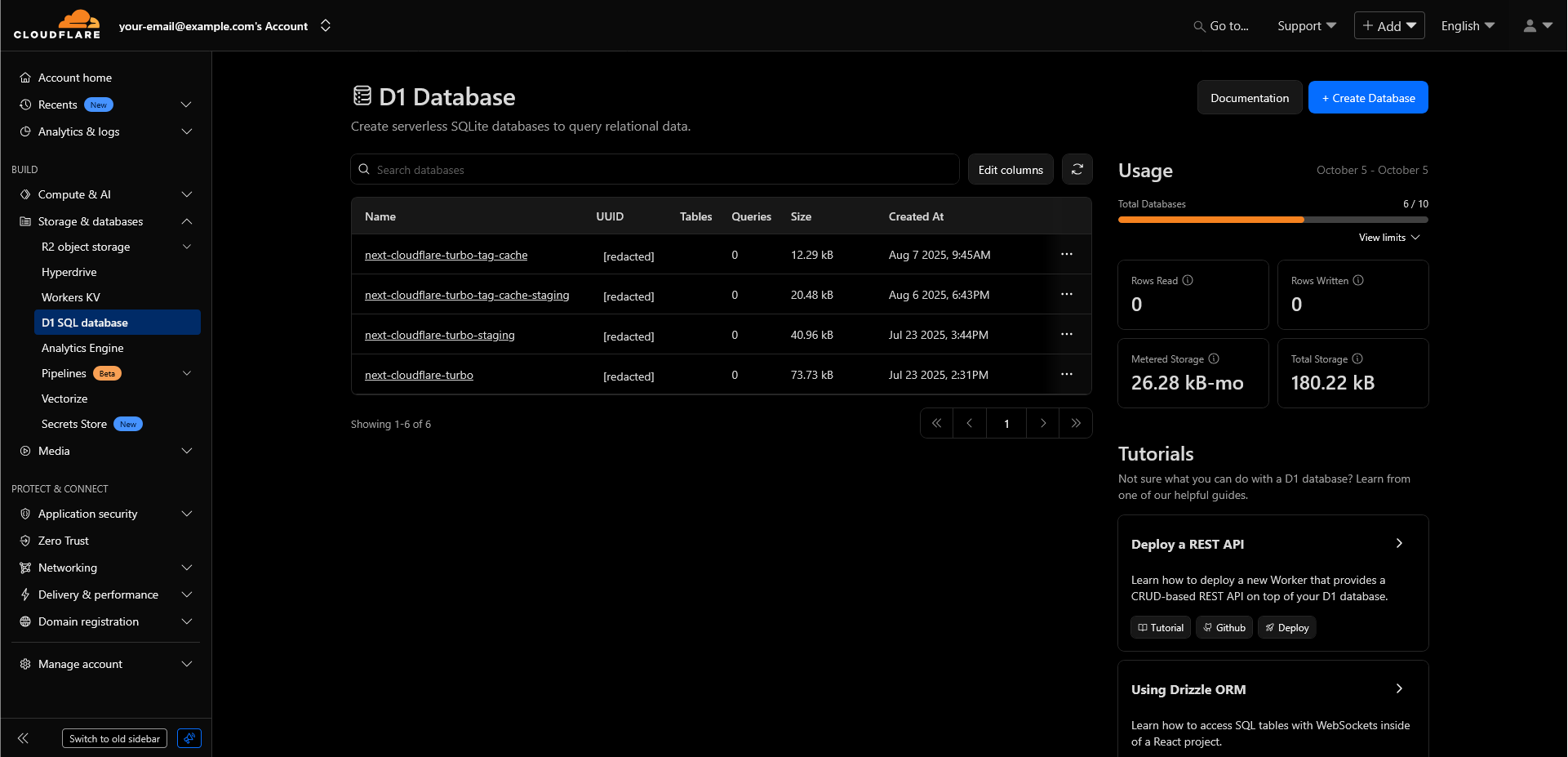
Within each database, you can:
- Console - Run SQL queries directly against your database
- Tables - Browse table structures and view data
- Metrics - Monitor query performance and database size
- Settings - View connection details and manage backups
The console is particularly useful for debugging production data issues or running one-off queries without deploying code changes.
Analytics and monitoring
Cloudflare provides several ways to monitor your applications:
Worker Analytics
Navigate to your Worker, then click the Analytics tab to see:
- Request volume over time
- Error rates and success rates
- Geographic distribution of requests
- Cache hit rates
Real-time Logs
The Logs tab (available in both Workers and D1 sections) provides:
- Real-time request streaming
- Filtered views by status code or time range
- Detailed error traces with stack information
- Request/response inspection
Logs are available for the past 24 hours on the free tier. Paid plans extend retention and provide more advanced filtering.
Account-level settings
Some settings apply across your entire Cloudflare account rather than individual Workers.
Access these by clicking your profile icon, then My Profile:
API Tokens - Create tokens for CI/CD pipelines or programmatic access. Required for some Wrangler commands.
Members - Manage team access if working with multiple developers.
Billing - View usage across all services, manage payment methods, and understand your current tier.
Notifications - Configure alerts for deployments, errors, or usage thresholds.
Most day-to-day work happens at the Worker level, not in account settings. You'll primarily use account settings for API token management.
Quick reference
Common tasks and where to find them:
| Task | Location |
|---|---|
| View deployment logs | Workers & Pages → [Your Worker] → Logs |
| Run database query | D1 → [Your Database] → Console |
| Check request metrics | Workers & Pages → [Your Worker] → Analytics |
| Manage environment variables | Workers & Pages → [Your Worker] → Settings → Variables |
| Create API token | Profile → My Profile → API Tokens |
| View billing usage | Profile → My Profile → Billing |
| Configure custom domain | Workers & Pages → [Your Worker] → Settings → Domains |
Next steps
Now that you understand the dashboard structure, explore specific features:
How is this guide?
Last updated on