VS Code and Monorepos
For a better development experience, you can use VS Code Workspaces for the monorepo. This will allow you to run tasks and debug the codebase from a single window, while keeping things more organised.
VS Code Workspaces
You can work with multiple folders in VS Code with multi-root workspaces.
The primary benefit for a monorepo is that you can easily "pin" folders to your Explorer window, so that moving between apps or packages in your monorepo is cleaner and easier. VS Code Workspaces also synergise well with extensions and is a strongly recommended approach for working with monorepos.
Open the monorepo workspace
In the /.vscode/ directory, you'll find a next-cloudflare-turbo.code-workspace file. Open this file in VS Code to open the monorepo Workspace.
From the VS Code UI, navigate to File then Open from Workspace File....
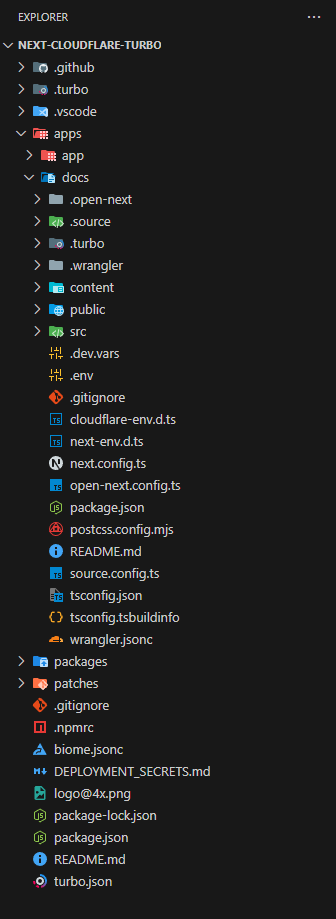
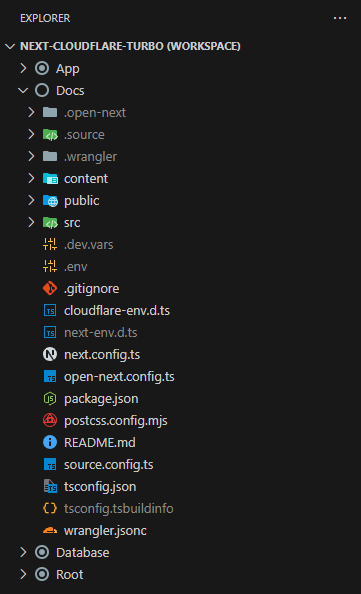
When you have done this once, VS Code will always open the project in the Workspace between VS Code sessions.
Modify the monorepo workspace
The next-cloudflare-turbo.code-workspace file contains the configuration for the monorepo.
If you want add, edit, or remove items from the Explorer navigation, you simply modify the config under the folders key. name is the name you want to see it as, and path is the relative path in your repo:
  "folders": [
    {
      "name": "App",
      "path": "../apps/app"
    },
    {
      "name": "Docs",
      "path": "../apps/docs"
    },
    {
      "name": "Database",
      "path": "../packages/db"
    },
    {
      "name": "Root",
      "path": "../"
    }
  ],
Running tasks
VS Code will try to autodetect tasks from gulp, grunt, npm, and TypeScript project files across all folders in a workspace as well as search for tasks defined in tasks.json files. The location of tasks is indicated by a folder name suffix.
Next-Cloudflare-Turbo doesn't use Tasks, but for more information see the official documentation
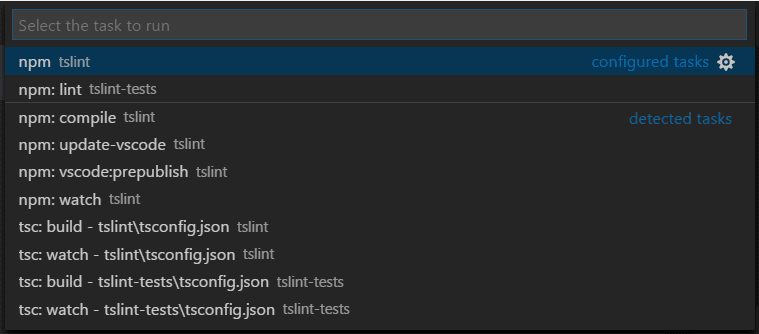
From the TSLint extension Workspace example above, you can see that there are two configured tasks from tasks.json files in the tslint and tslint-tests folders and numerous autodetected npm and TypeScript compiler detected tasks.
Debugging
With multi-root workspaces, VS Code searches across all folders for launch.json debug configuration files and displays them with the folder name as a suffix.
Additionally VS Code will also display launch configurations defined in the workspace configuration file.
You can still create launch configurations for each individual package in the monorepo and they will populate in the dropdown list automatically.
Tips
This section outlines some helpful tips for working with multiroot workspaces in VS Code.
Settings
Settings can be stored in the code-workspace file. By storing settings in this file, it applies them every time this specific workspace is opened.
This is helpful as it allows you to have fine-grained control. If there are settings that you do not want to use, or want to change, you can overwrite and remove them from the code-workspace file, and it will apply to all packages in the monorepo, without impacting your personal preferences in your VS Code settings.
Settings in a code-workspace follow the usual VS Code settings syntax:
{
  "settings": {
    // Hides files from VS Code Explorer tree
    "files.exclude": {
      "**/.next": true,
      "**/.turbo": true,
      "**/node_modules": true,
      "**/dist": true
    },
    // Files won't ever be included in Search (Ctrl+Shift+F)
    "search.exclude": {
      "**/.next": true,
      "**/dist": true,
      "**/.turbo": true,
      "**/.open-next": true,
      "**/.wrangler": true,
      "package-lock.json": true
    },
    // Ensures that VS Code uses the same TypeScript version that your project depends on, rather than VS Code's built-in TypeScript version
    "typescript.tsdk": "Root\\node_modules\\typescript\\lib",
    // Editor/formatting settings
    "editor.defaultFormatter": "biomejs.biome",
    "editor.formatOnSave": true,
}
Workspace search
One of the added benefits of configuring code workspaces in VS Code is that you can easily configure the Search (Ctrl+Shift+F) to restrict its results to a given workspace.
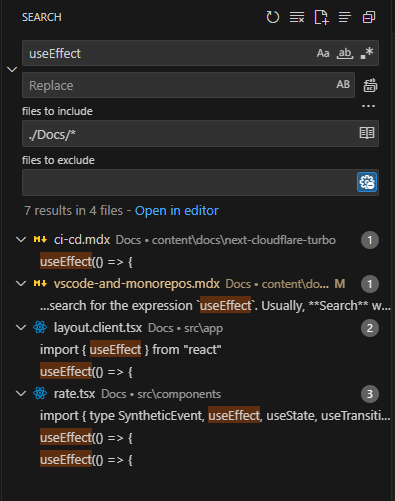
Lets say you are trying to search for the expression useEffect. Usually, Search would check all your local files for a match, likely bringing up multiple results that you do not need. While this is easy to collapse in the UI, with less specific search terms this can quickly become a lengthier procedure with hundreds of matches.
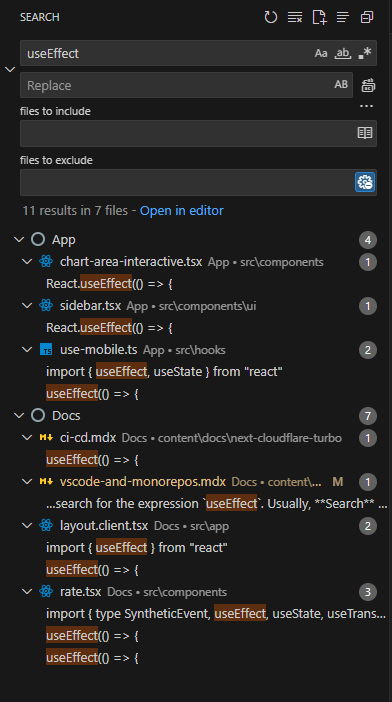
When operating in code workspaces, you can add the workspace name to the files to include to restrict results to that workspace only.
In this monorepo, we have specified a "Docs" workspace. If you set files to include to ./Docs/* it will only search in the Docs workspace.
You can combine workspaces, or exclude workspaces in the same way.
Extensions
Much like settings, extensions provide recommendations for users upon opening the monorepo, if the extensions are not already installed.
Extension recommendations for the monorepo are saves in the VS Code workspace file:
{
  "extensions": {
    "recommendations": [
      "biomejs.biome",
      "joshx.workspace-terminals",
      "bradlc.vscode-tailwindcss",
      "wix.vscode-import-cost"
    ]
  },
}How is this guide?
Last updated on